
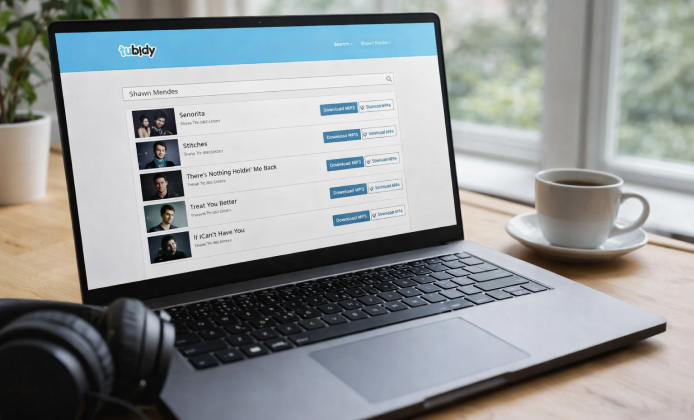
If you’re trying to set up Tubidy quickly and avoid common mistakes, this guide walks you through a clear, practical process. You’ll learn what to prepare, how to verify what you’re installing, and how to troubleshoot the most frequent issues without wasting time.
Before You Start
- Check your device storage: keep at least 500 MB free for downloads and temporary files.
- Confirm your connection: stable Wi-Fi helps prevent corrupted files.
- Update your browser or system: older versions may block downloads or break playback.
- Use a security scan: on Android and Windows, scan any downloaded file before opening it.
A good rule: if something asks for unusual permissions or redirects you repeatedly, stop and verify the source before continuing.
Install on Android Devices
For many users, the easiest approach is to access the service through a mobile browser first, then decide whether an app-based option is needed. When you decide to proceed, follow a careful flow so you don’t end up with the wrong file.
- Open your preferred browser and locate the correct download option that matches your device.
- Review the file name and format before saving it.
- Run a quick malware scan on the downloaded file.
- Enable installation from unknown sources only if your device requires it, and disable it again afterward.
- Complete the setup and test with a small download to confirm everything works.
When you need the quickest path, you can install Tubidy app by following the standard Android installer prompts and then verifying permissions after the first launch.
Recommended Permission Check
- Storage/Media: needed to save files and manage downloads.
- Notifications: optional, useful for download progress alerts.
- Microphone/Contacts/Location: usually unnecessary for a download-focused utility—deny unless you have a specific reason.
Install on Windows and Use It on a Computer
Windows users typically have two workable routes: using a browser workflow or running an Android environment on Windows. Choose the option that fits your comfort level and device resources.
Option A: Browser Workflow (Simplest)
- Use an up-to-date browser and test the website with a short download.
- Set a dedicated download folder so files are easy to find and scan.
- Check the saved format (for example, audio vs. video) before opening.
Option B: Android Environment (More Control)
- Install an Android emulator from our fan website.
- Sign in only if it’s required by the environment, not by random pop-ups.
- Install within the Android environment and keep Windows Defender enabled.
Many people prefer this route when they want to install Tubidy on PC and keep downloads organized in one place.
If your goal is a full desktop workflow, it may be helpful to install Tubidy app on Windows using an Android environment, then map a shared folder so downloads appear in a Windows directory automatically.
Quick Comparison Table
| Method | Best For | Pros | Cons |
|---|---|---|---|
| Mobile browser | Fastest start | No extra setup, works on most phones | Depends on browser compatibility |
| Android app | Frequent downloads | Convenient access, clearer download history | Requires careful permission review |
| Windows browser | PC-first workflow | Easy file management, quick scanning | Pop-ups can be distracting on some sites |
| Android environment on Windows | Power users | App-like experience on PC | Higher CPU/RAM usage |
Troubleshooting: Fix the Most Common Problems
- Disable aggressive ad-block rules for the session, then retry.
- Switch to another browser to rule out a compatibility issue.
- Clear cache and cookies if the page loops or freezes.
File Downloads but Won’t Open
- Confirm the file extension matches your player (audio vs. video).
- Re-download using a stable connection—partial downloads often fail.
- Update your media player or codec pack on Windows.
Too Many Pop-Ups or Redirects
- Close the tab and start again from a clean browser session.
- Avoid clicking “Download” buttons that appear away from the main content area.
- Use a security scan before running any installer.
Best Practices for a Clean Setup
- Create a dedicated folder for downloads and keep it scanned automatically.
- Keep permissions minimal and review them after every update.
- Test with one small file before downloading a large library.
For users who want a simple sequence from start to finish, Tubidy install works best when you keep the process linear: verify the source, download once, scan, then proceed. If you’re moving between devices, it helps to install Tubidy with the same download folder structure so files stay organized and easy to back up.
When using a desktop workflow, Tubidy app install is smoother if your browser downloads are routed to a single location and your antivirus scans the folder in real time.
To avoid confusion across multiple options, install Tubidy app on Windows only after confirming your Windows version and choosing a stable Android environment with regular updates. If you prefer a one-step approach, you can download and install Tubidy app and then immediately review app permissions, download paths, and notification settings.
FAQ
- Is it better to use a browser or an app? If you only download occasionally, a browser is usually enough. If you download often and want a clearer history, an app-like workflow can be more convenient.
- How do I keep downloads organized? Use one dedicated folder, name files consistently, and back up the folder periodically. On Windows, enable automatic scanning for that directory.
- What should I do if playback fails? Try another player, update codecs on Windows, and confirm you downloaded the correct file format for your device.


 Tubidy Install Guide: Safe Setup Steps for Windows PC
 Tubidy Full Version: What It Is, How It Works, and How to Use It Responsibly
 Tubidy on PC: A Clean Workflow for Downloads and Playback
 Tubidy App on Laptop: A Practical Guide for Fast Searching, Streaming, and Saving
 Interesting Facts About Tubidy App
 Helpful Tips for Tubidy Users